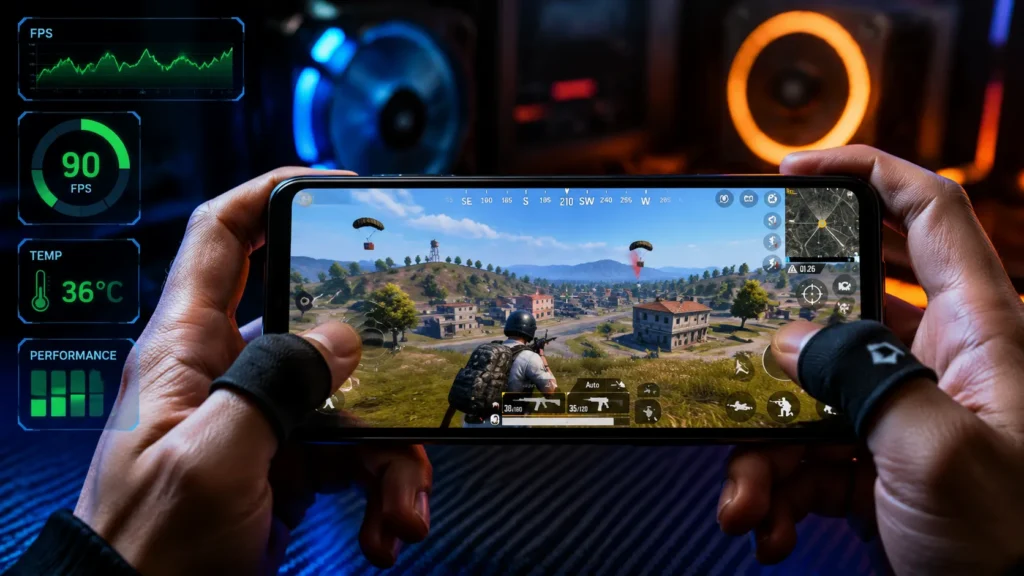
Frame drops, overheating, and sudden lag are the biggest problems faced by competitive BGMI players. A single FPS drop during a close-range fight can affect the recoil control, movement, and reaction time.
The best BGMI graphics settings are not about making the game look more realistic. Competitive players focus on a stable FPS, low input delay, and smooth performance. By optimizing the graphics settings, the device load can be reduced, visibility improved, and a more consistent gaming experience achieved.
In this updated 2026 guide, we cover the 9 best BGMI graphics settings for low-end, mid-range, and flagship devices to achieve smoother gameplay.
Read also: Multiplayer Shooting Games for PC
Best BGMI Graphics Settings 2026
Choosing the right BGMI graphics settings can make a major difference in competitive game play. High graphics may improve visual quality, but they can also increase device temperature, consume more resources, and cause FPS drops during critical fights.
For a smoother experience, players should focus on stable frame rates, improved visibility, and reduced processing load. The following settings were optimized to improve performance, minimize lag, and provide a consistent gaming experience across different devices.
1. Graphics Quality: Smooth (Best Performance Setting)
The most important BGMI graphics setting is Graphics Quality.
For competitive gameplay, always select Smooth instead of HD, HDR, or Ultra HD.
Higher graphics settings increase:
- Texture quality
- Shadow details
- Reflection effects
- GPU workload
Although high-quality graphics make the game look better, they also increase heating and can cause FPS drops on many smartphones.
Why Smooth Graphics Is Better:
- Higher frame stability
- Lower GPU usage
- Less overheating
- Faster rendering during fights
- Better performance on budget devices
Recommended Setting:
Graphics Quality: Smooth
2. Frame Rate: Use the Highest Available FPS
Frame rate directly affects how smoothly BGMI runs.
A higher FPS means:
- Faster screen response
- Smoother camera movement
- Better recoil control
- Lower input delay
Use the maximum frame rate option supported by your device.
BGMI FPS Recommendations:
| FPS | Experience |
|---|---|
| 30 FPS | Basic gameplay |
| 40 FPS | Acceptable performance |
| 60 FPS | Competitive standard |
| 90 FPS | High refresh-rate gameplay |
| 120 FPS | Premium flagship experience |
If your phone supports 90 FPS or 120 FPS, enable it for smoother gameplay.
Recommended Setting:
Frame Rate: Extreme / 90 FPS / 120 FPS
3. Style: Colorful for Better Enemy Visibility
BGMI provides different visual styles that change colors and contrast.
Most competitive players prefer the Colorful style because it improves visibility.
Advantages:
- Better contrast between players and surroundings
- Easier enemy detection in grass areas
- Clearer visuals during different weather conditions
Colorful works especially well on maps like:
- Erangel
- Livik
- Sanhok
- Miramar
Recommended Setting:
Style: Colorful
4. Anti-Aliasing: Disable for Better FPS
Anti-aliasing improves image quality by smoothing rough edges around objects.
However, this process requires additional GPU power.
When enabled, it can increase:
- Battery consumption
- Device temperature
- Frame drops
For competitive gameplay, visuals are less important than performance.
Recommended Setting:
Anti-Aliasing: Disabled
5. Shadows: Turn Off for Maximum Performance
Shadows add realism by creating dynamic lighting effects around players, vehicles, and buildings.
However, real-time shadows require additional processing power.
Disabling shadows helps:
- Reduce GPU workload
- Improve FPS stability
- Reduce heating
- Improve visibility in dark areas
Many competitive players keep shadows disabled because smoother gameplay provides a bigger advantage than visual effects.
Recommended Setting:
Shadows: Disabled
6. Auto Adjust Graphics: Keep It Disabled
BGMI includes an Auto Adjust Graphics feature that automatically changes settings when your device temperature increases.
While this sounds useful, it can create sudden performance changes during matches.
Problems caused by Auto Adjust Graphics:
- Unexpected FPS drops
- Changing visual quality during gameplay
- Unstable performance in late zones
During intense fights with multiple players, smoke grenades, and vehicles, stable settings are more reliable.
Recommended Setting:
Auto Adjust Graphics: Disabled
7. Brightness Settings: 110%–120%
Brightness plays an important role in spotting enemies.
A slightly increased brightness level can help you see:
- Enemies hiding inside buildings
- Players sitting in dark corners
- Shadows around objects
However, extremely high brightness can reduce contrast and make distant enemies harder to notice.
Recommended Setting:
Brightness: 110%–120%
8. Non-Standard Screens: Adjust Your HUD Properly
The Non-Standard Screens option helps BGMI adjust the interface according to your display shape.
It is useful for phones with:
- Display notches
- Curved screens
- Rounded corners
A properly adjusted HUD gives you:
- Better button placement
- More comfortable controls
- More screen visibility
Recommended Setting:
Adjust according to your display
9. Audio Quality: High for Balanced Performance
Audio is important in BGMI because footsteps and gun sounds provide valuable information.
Ultra audio quality provides better sound details, but it can increase processing load on weaker devices.
For most players:
| Device Type | Audio Setting |
|---|---|
| Low-End Phone | Medium |
| Mid-Range Phone | High |
| Flagship Device | Ultra |
High-quality audio provides clear directional sound while maintaining better performance.
Recommended Setting:
Audio Quality: High
Best BGMI Graphics Settings According to Device Type
Different smartphones require different optimization.
| Device Category | Graphics | FPS | Extra Optimization |
|---|---|---|---|
| Low-End (3GB–4GB RAM) | Smooth | Ultra/Extreme | Shadows Off |
| Mid-Range (6GB–8GB RAM) | Smooth | Extreme 60 FPS | Anti-Aliasing Off |
| Flagship (12GB+ RAM) | Smooth | 90/120 FPS | Maximum Performance |
BGMI Settings for Low-End Phones Without Lag
If you play BGMI on a budget smartphone, consider the following additional tips:
Before Playing:
- Close background applications
- Clear unnecessary storage
- Restart your phone
- Enable gaming mode
During Gameplay:
- Avoid playing while charging
- Keep your phone temperature low
- Reduce brightness if overheating occurs
- Avoid using screen recording apps
These small changes can significantly improve FPS stability.
How to Reduce BGMI Heating Problems
Heating is one of the main reasons for FPS drops.
Follow these steps:
1. Remove Thick Phone Cases
Heavy cases trap heat and reduce cooling efficiency.
2. Avoid Playing Under Direct Sunlight
High external temperatures increase thermal throttling.
3. Keep Storage Free
Low storage can affect overall device performance.
4. Take Breaks During Long Sessions
Continuous gaming increases processor temperature.
Best BGMI Competitive Settings for Pro Players
Competitive players usually focus on:
- Smooth graphics
- Maximum FPS
- Colorful style
- No shadows
- No anti-aliasing
- Stable device temperature
Remember that graphics settings alone do not improve aim. The best results come from combining:
- Proper sensitivity settings
- Good device performance
- Stable internet connection
- Practice
Frequently Asked Questions (FAQs)
Which graphics setting is best for BGMI?
The best BGMI graphics setting is smooth graphics with the highest available FPS because it provides better performance and a lower input delay.
Does Smooth graphics increase FPS in BGMI?
Yes. Smooth graphics reduce the GPU workload, allowing the device to deliver more stable frames.
Should I enable anti-aliasing in BGMI?
No. Competitive players usually keep anti-aliasing disabled because it consumes additional GPU resources.
Is 90 FPS better than 60 FPS in BGMI?
Yes. 90 FPS provides smoother movement and faster response, but only if the device supports it.
Why does BGMI lag after playing for some time?
Long gaming sessions can cause overheating, which leads to thermal throttling and FPS reduction.