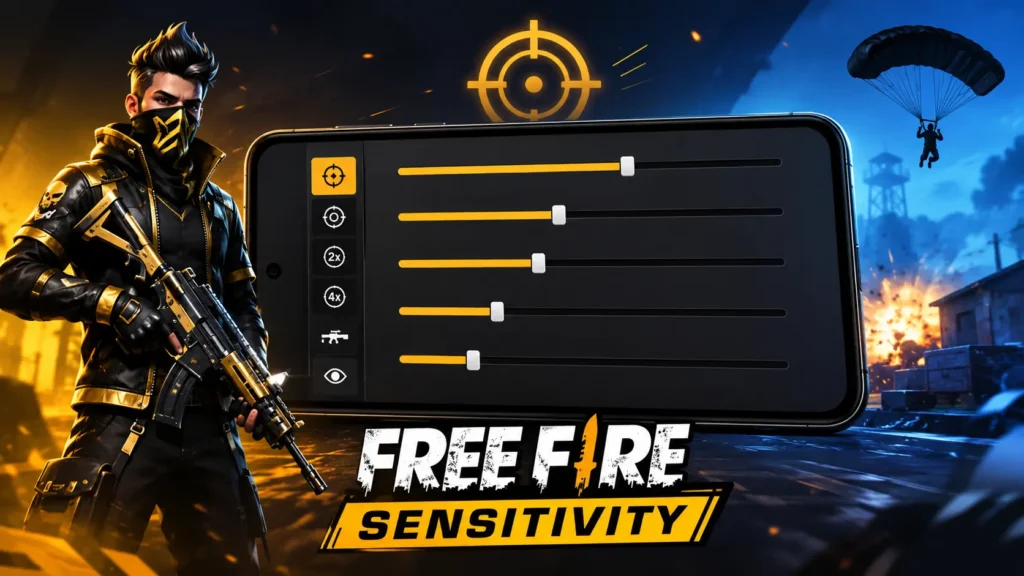
Free Fire is one of the most competitive battle royale games, where fast reflexes and accurate aiming can decide every match. While many players focus on upgrading their devices or changing their HUD layout, they often overlook one important setting—Sensitivity.
The right sensitivity settings help you control recoil, improve drag shots, and make one-tap headshots easier. However, there is no single sensitivity setup that works for everyone. Your ideal settings depend on factors such as your phone’s performance, display refresh rate, playing style, and whether you use a gyroscope.
In this guide, you’ll find the best Free Fire sensitivity settings for Android and iPhone, along with recommendations for low-end, mid-range, and high-end devices. You’ll also learn how to adjust these settings based on your own gameplay instead of relying only on copied pro player configurations.
What Is Free Fire Sensitivity?
Sensitivity determines how quickly your camera moves when you swipe your finger across the screen. Higher sensitivity allows faster movement, while lower sensitivity offers better control and precision.
Choosing the correct balance is important because different weapons, scopes, and combat situations require different levels of movement speed.
For example:
- High sensitivity helps with drag headshots and close-range fights.
- Medium sensitivity provides better recoil control.
- Lower scoped sensitivity improves long-range accuracy.
Instead of copying another player’s settings, use them as a starting point and adjust them according to your device and playstyle.
Why Sensitivity Plays a Big Role in Headshots
Landing headshots consistently isn’t only about fast fingers. Your sensitivity directly affects how accurately your crosshair moves toward an opponent’s head.
With properly adjusted settings, you can:
- Improve drag-shot accuracy.
- React faster during close-range fights.
- Control recoil more effectively.
- Track moving enemies smoothly.
- Switch between targets with greater precision.
Even experienced players regularly fine-tune their sensitivity after game updates or when switching to a new phone.
Factors That Affect the Best Sensitivity
Many players ask, “Why do the same settings feel different on another phone?”
Several factors influence sensitivity performance.
Device Performance
Phones with more RAM and stronger processors usually deliver smoother gameplay. This allows players to use slightly higher sensitivity without losing control.
Display Refresh Rate
Devices with 90Hz, 120Hz, or higher refresh rates respond more smoothly to finger movement, making high sensitivity easier to manage.
Touch Sampling Rate
A faster touch response improves drag speed and aiming accuracy.
Screen Size
Large displays require slightly different finger movement compared to compact phones.
Playing Style
Rush players often prefer higher sensitivity, while snipers usually choose lower scoped sensitivity for improved accuracy.
Best Free Fire Sensitivity for Android
Android devices vary significantly in hardware, so the ideal settings depend on your phone’s performance.
Recommended Android Sensitivity
| Setting | Value |
|---|---|
| General | 198 |
| Red Dot | 190 |
| 2x Scope | 180 |
| 4x Scope | 160 |
| Sniper Scope | 100 |
| Free Look | 70 |
These settings provide a balanced experience across many popular Android brands, including Samsung, Xiaomi, Vivo, OPPO, Realme, OnePlus, iQOO, Motorola, and Nothing.
Best Free Fire Sensitivity for iPhone
iPhones generally offer stable frame rates and excellent touch responsiveness, allowing players to use slightly more aggressive sensitivity settings.
Recommended iPhone Settings
| Setting | Value |
|---|---|
| General | 200 |
| Red Dot | 195 |
| 2x Scope | 185 |
| 4x Scope | 165 |
| Sniper Scope | 105 |
| Free Look | 75 |
These values work well for most recent iPhone models while maintaining smooth camera movement and accurate drag shots.
Best Sensitivity for Low-End Devices (2–4GB RAM)
Low-end smartphones often experience frame drops during intense fights. Extremely high sensitivity may cause inconsistent aim on these devices.
Recommended Settings
| Setting | Value |
|---|---|
| General | 185 |
| Red Dot | 175 |
| 2x Scope | 165 |
| 4x Scope | 145 |
| Sniper Scope | 90 |
| Free Look | 65 |
Tips for Low-End Phones
- Close unnecessary background apps before launching the game.
- Use the Smooth graphics option for better frame rates.
- Keep enough storage available on your device.
- Avoid changing sensitivity after every match.
- Practice with one setup for several days before making adjustments.
Consistency matters more than using extremely high values.
Best Sensitivity for Mid-Range Devices (4–8GB RAM)
Mid-range phones offer a good balance between performance and stability, making them suitable for slightly higher sensitivity.
Recommended Settings
| Setting | Value |
|---|---|
| General | 195 |
| Red Dot | 185 |
| 2x Scope | 180 |
| 4x Scope | 160 |
| Sniper Scope | 100 |
| Free Look | 70 |
These settings provide faster movement while maintaining recoil control during ranked matches.
Best Sensitivity for High-End Devices (8GB+ RAM)
Premium smartphones can maintain higher frame rates with excellent touch responsiveness, allowing faster camera movement.
Recommended Settings
| Setting | Value |
|---|---|
| General | 200 |
| Red Dot | 195 |
| 2x Scope | 190 |
| 4x Scope | 165 |
| Sniper Scope | 105 |
| Free Look | 75 |
These settings are ideal for players who enjoy aggressive rushing, quick drag shots, and fast reaction-based gameplay.
Quick Tips Before Changing Sensitivity
Before copying any settings, remember these points:
- Keep the same settings for several days before judging the results.
- Test changes in Training Ground before ranked matches.
- Adjust one setting at a time instead of changing everything together.
- Higher sensitivity is not always better.
- Focus on consistency rather than copying professional players exactly.
With the right balance of sensitivity and regular practice, your aim will naturally become smoother and more accurate over time.
Gyroscope vs Non-Gyroscope: Which Is Better?
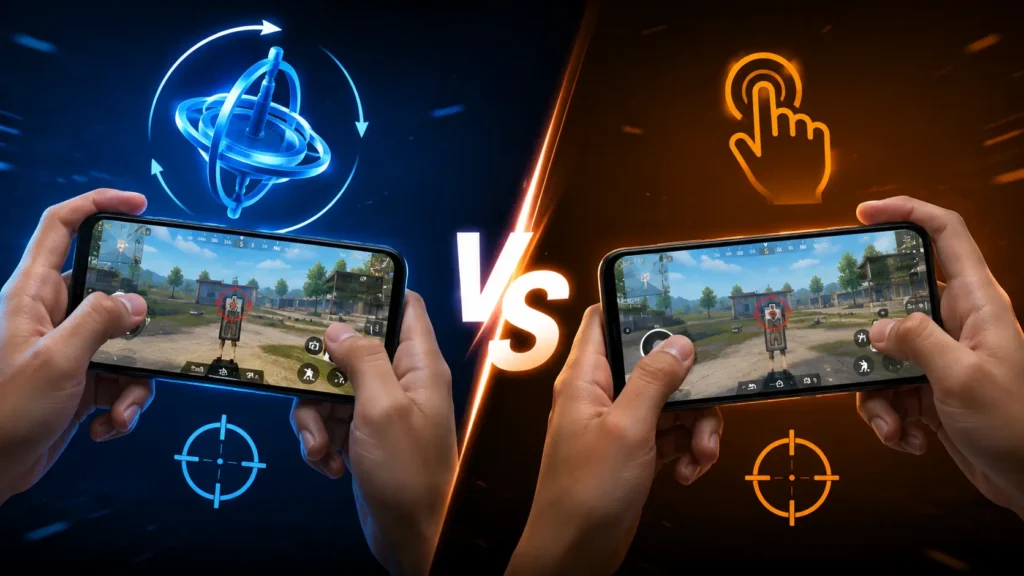
One of the biggest questions among Free Fire players is whether they should enable the gyroscope. The answer depends on your comfort level and how you aim during matches.
A gyroscope allows you to control your aim by slightly tilting your phone instead of relying only on finger movement. Many experienced players use it because it helps with recoil control and target tracking. However, if you’re already comfortable with drag shots, you can still perform well without it.
Who Should Use Gyroscope?
Enable the gyroscope if you:
- Want better recoil control.
- Prefer assault rifles and SMGs.
- Play on a stable surface or with both hands.
- Enjoy medium- and long-range fights.
You may keep it disabled if:
- You mainly use drag shots.
- You play casually.
- Phone movement feels uncomfortable.
- You’re still learning the game.
Recommended Gyroscope Sensitivity
These values provide a balanced starting point for most devices.
| Setting | Recommended Value |
|---|---|
| General | 100 |
| Red Dot | 90 |
| 2x Scope | 85 |
| 4x Scope | 75 |
| Sniper Scope | 50 |
| Free Look | 70 |
Don’t copy these values permanently. Play several matches and make small adjustments according to your comfort.
Best Sensitivity Based on Your Playing Style
Every player has a different approach to battles. Choosing settings based on your playstyle often produces better results than copying someone else’s setup.
Aggressive Rush Players
If you constantly push enemies and fight at close range, use faster camera movement.
| Setting | Value |
|---|---|
| General | 200 |
| Red Dot | 195 |
| 2x Scope | 185 |
| 4x Scope | 165 |
| Sniper Scope | 100 |
These settings help you react quickly during fast-paced fights.
Balanced Players
If you enjoy both rushing and long-range combat, keep your sensitivity moderate.
| Setting | Value |
|---|---|
| General | 195 |
| Red Dot | 185 |
| 2x Scope | 180 |
| 4x Scope | 160 |
| Sniper Scope | 100 |
This setup provides good accuracy without sacrificing movement speed.
Sniper-Focused Players
Snipers need steady aim rather than extremely fast camera movement.
| Setting | Value |
|---|---|
| General | 170 |
| Red Dot | 160 |
| 2x Scope | 150 |
| 4x Scope | 130 |
| Sniper Scope | 75 |
Lower scoped sensitivity makes it easier to line up precise shots.
Fire Button Size and Placement
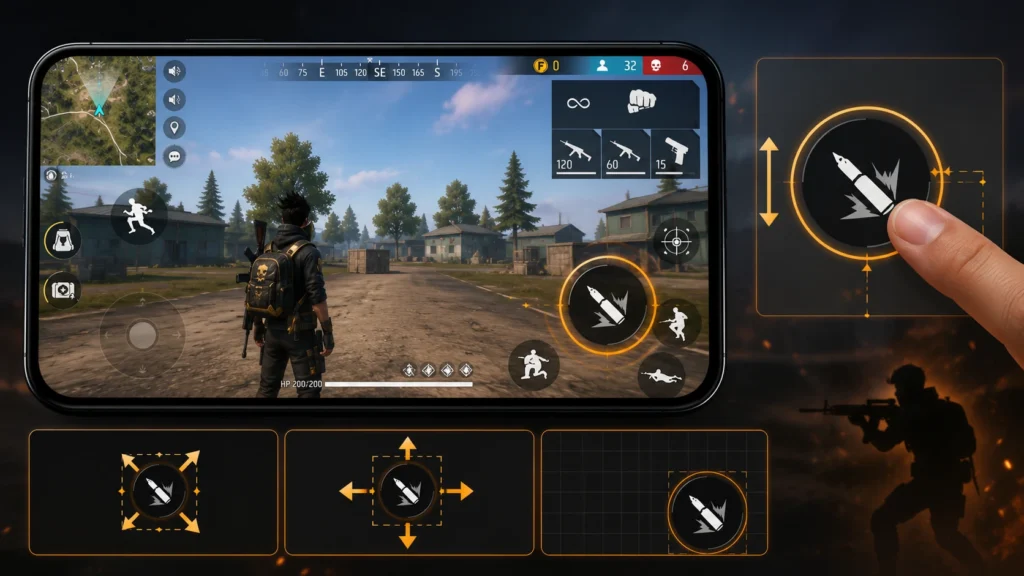
Sensitivity alone won’t improve your gameplay if your fire button isn’t comfortable.
Many players perform well with a fire button size between 45% and 55%, but there isn’t a universal value that works for everyone.
When adjusting your fire button:
- Keep it easy to reach.
- Avoid placing it too close to screen edges.
- Leave enough space for drag shots.
- Maintain the same position after finding a comfortable layout.
Changing the button position every few matches can affect muscle memory.
Understanding DPI Settings
Some Android devices allow users to change DPI (Dots Per Inch). DPI changes how responsive the screen feels.
Higher DPI may make drag shots feel quicker, while lower DPI offers more controlled movement.
General recommendations:
| Device Type | Suggested DPI |
|---|---|
| Low-End | 420–480 |
| Mid-Range | 480–560 |
| High-End | 560–650 |
Only adjust DPI if your device officially supports it. Avoid using third-party tools that violate game policies.
How to Customize Your Own Sensitivity
The best settings are the ones that match your own gameplay. Follow this simple process instead of changing everything at once.
Step 1: Start With Balanced Settings
Begin with the recommended values from Part 1.
Play several matches before making any changes.
Step 2: Visit the Training Ground
Practice:
- Drag shots
- Recoil control
- Quick flicks
- Scope switching
Training mode allows you to test settings without affecting your rank.
Step 3: Play Clash Squad
After training, test your settings in real combat.
Notice whether:
- Your crosshair moves too fast.
- Your aim stops below the enemy’s head.
- Recoil becomes difficult to control.
- You over-swipe during close fights.
Step 4: Record Your Gameplay
Watching your own matches helps identify aiming mistakes that are difficult to notice while playing.
Pay attention to:
- Crosshair placement.
- Drag timing.
- Missed headshots.
- Recoil control.
- Movement during fights.
Small observations often lead to significant improvements.
Step 5: Change One Setting at a Time
Avoid adjusting every slider together.
Instead:
- Increase or decrease one setting by 5–10 points.
- Play several matches.
- Evaluate the difference.
- Repeat only if necessary.
This method makes it easier to understand what actually improves your gameplay.
Common Sensitivity Mistakes
Many players struggle because they keep changing settings instead of improving their mechanics.
Avoid these common mistakes:
- Copying pro player settings without testing.
- Using maximum sensitivity on every phone.
- Ignoring frame drops caused by device performance.
- Changing sensitivity after every losing match.
- Skipping practice before ranked games.
Consistency is usually more valuable than constantly searching for “magic” settings.
Practice Routine for Better Headshots
Improvement comes from regular practice, not just better settings.
Try this simple routine:
| Activity | Time |
|---|---|
| Training Ground | 10 minutes |
| Drag Shot Practice | 10 minutes |
| Clash Squad Matches | 20 minutes |
| Battle Royale Matches | 20–30 minutes |
Following this routine consistently helps build muscle memory and improves aiming over time.
Extra Tips to Improve Accuracy
Besides sensitivity, these habits can also make a noticeable difference:
- Keep your crosshair near chest level while moving.
- Learn recoil patterns of your favorite weapons.
- Avoid unnecessary jumping during long-range fights.
- Use headphones to hear enemy footsteps.
- Maintain a stable internet connection for smoother gameplay.
- Clean your screen regularly for better touch response.
- Stick to one HUD layout for several weeks.
Mastering these basics alongside the right sensitivity settings can improve your overall performance much more than changing numbers alone.
Expert Tips to Improve Your Free Fire Gameplay
Finding the right sensitivity is only one part of becoming a better player. Consistent practice, good decision-making, and understanding your strengths are equally important.
Here are a few practical tips that can help improve your overall performance:
- Practice with the same sensitivity for at least 5–7 days before making changes.
- Learn the recoil pattern of your favorite weapons.
- Keep your crosshair at upper-body level while moving around the map.
- Avoid copying every pro player’s settings because every device responds differently.
- Use headphones to hear enemy footsteps and gunfire.
- Play Training Ground before jumping into Ranked matches.
- Keep your device cool during long gaming sessions to maintain stable performance.
- Update the game regularly to ensure the latest optimization improvements.
Common Myths About Free Fire Sensitivity
Many players believe these myths, but they are not always true.
Myth: High sensitivity guarantees more headshots.
Reality: Good aim comes from practice, crosshair placement, and consistency—not just higher sensitivity.
Myth: Pro player settings work on every phone.
Reality: Different devices have different touch response, frame rates, and display performance.
Myth: Changing settings every day improves gameplay.
Reality: Frequent changes usually reduce consistency and make aiming harder
Final Thoughts
The best Free Fire sensitivity is the one that feels comfortable and allows you to aim consistently during real matches. Instead of searching for a universal “perfect” setup, use the recommended values in this guide as a starting point and gradually personalize them.
Remember that sensitivity alone won’t turn you into a better player overnight. Regular practice, smart positioning, recoil control, and understanding your preferred weapons all play a major role in improving your performance.
Take time to test your settings in Training Ground, make small adjustments, and stick with them long enough to build muscle memory. With patience and consistent practice, you’ll develop smoother aim, better recoil control, and more reliable headshots on both Android and iPhone.
Whether you’re a beginner trying to improve or an experienced player looking for more consistent gameplay, the right sensitivity combined with regular practice can make every match feel more controlled and enjoyable.
FAQs
What is the best Free Fire sensitivity for one-tap headshots in 2026?
There isn’t a single perfect setting for every player. A General sensitivity between 195–200 and Red Dot around 190–195 works well for many players, but you should always adjust the values based on your device and playing style.
Which sensitivity works best on low-end phones?
For phones with 2–4GB RAM, slightly lower values provide better control and smoother aiming. Extremely high sensitivity may feel inconsistent if your device experiences frame drops.
What sensitivity is recommended for aggressive rush players?
Rush players usually benefit from higher General and Red Dot sensitivity because faster camera movement helps during close-range fights.
Is gyroscope useful in Free Fire?
Yes. If you can get comfortable with it, the gyroscope can improve recoil control and tracking accuracy, especially with assault rifles.
Are Android and iPhone sensitivity settings different?
The sensitivity sliders are the same, but the overall feel can differ because of hardware, touch response, display refresh rate, and game optimization. Small adjustments may be needed when switching between devices.
What DPI should I use?
If your Android device officially supports DPI adjustments, choose a value that feels comfortable rather than the highest available. Stable control is usually more important than maximum speed.