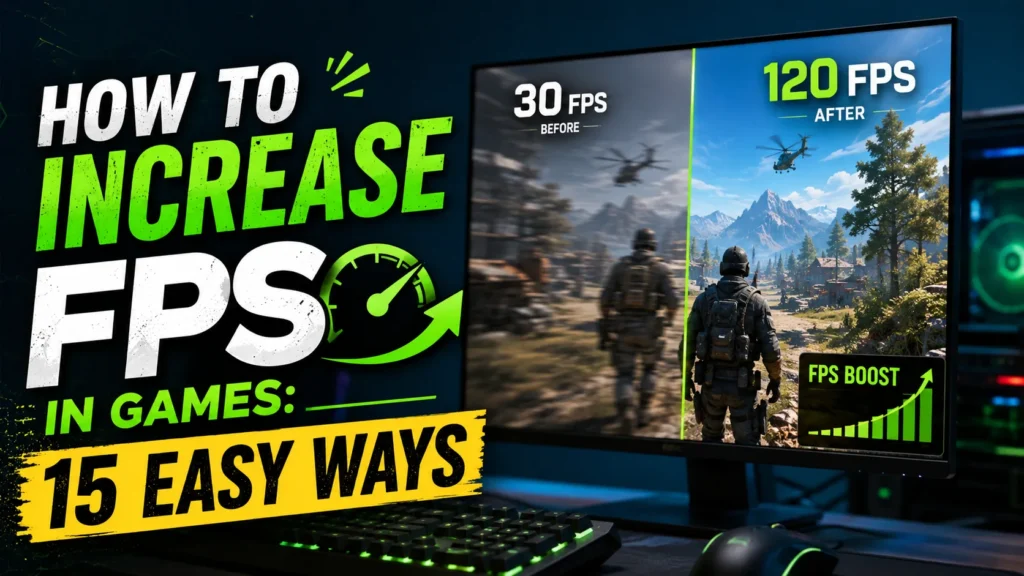
If your games feel laggy, stutter frequently, or don’t run smoothly, low FPS (Frames Per Second) is often the reason. A low frame rate can make even a powerful PC feel slow, especially in competitive games where smooth gameplay matters.
The good news is that you don’t always need to buy new hardware. In many cases, a few simple changes to your Windows settings, graphics options, and gaming setup can noticeably improve performance.
In this guide, you’ll learn how increase FPS using 15 practical methods that actually work. These tips are suitable for Windows 10 and Windows 11 users and can help improve performance in games like Valorant, Fortnite, GTA V, Counter-Strike 2, Apex Legends, Call of Duty, Minecraft, and many others.
What Does FPS Mean in Games?
FPS stands for Frames Per Second. It tells you how many images your computer displays every second while you’re playing a game.
A higher FPS makes gameplay smoother and more responsive.
Here’s a simple comparison:
| FPS | Gaming Experience |
|---|---|
| 30 FPS | Playable but less smooth |
| 60 FPS | Smooth gameplay for most players |
| 120 FPS | Very smooth with faster response |
| 144 FPS and above | Best for competitive gaming |
While high FPS won’t instantly make you a better gamer, it improves visual smoothness and reduces input delay, making games feel more responsive.
Why Is Your Game FPS So Low?
Before trying to increase FPS, it’s important to understand what’s causing the problem.
Some of the most common reasons include:
- Outdated graphics drivers
- Graphics settings that are too high
- Too many background applications running
- Overheating CPU or GPU
- Insufficient RAM
- Slow hard drive (HDD)
- Windows using Balanced power mode
- Older graphics card or processor
Finding the cause helps you apply the right fix instead of changing random settings.
Also read: Top Open World Games
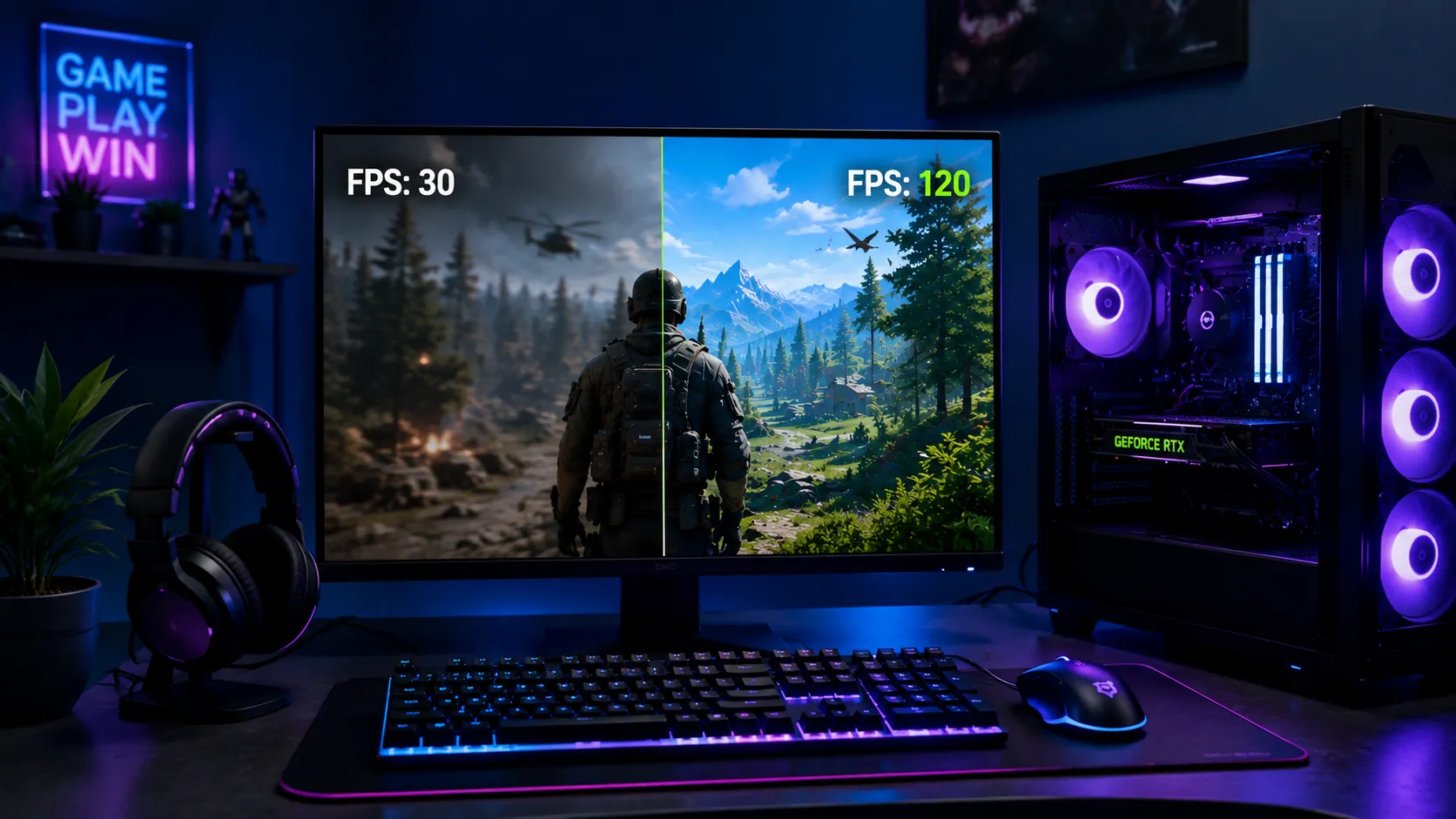
15 Easy Ways to Increase FPS in Games
1. Update Your Graphics Driver
One of the easiest ways to improve gaming performance is by updating your graphics driver.
Graphics card manufacturers regularly release driver updates that improve performance, fix bugs, and optimize newly released games.
If you’re using:
- NVIDIA → Update through GeForce Experience or NVIDIA App
- AMD → Use AMD Software: Adrenalin Edition
- Intel → Use Intel Driver & Support Assistant
Updating drivers can also fix sudden FPS drops after game updates.
Tip: Always install the latest stable driver instead of very old versions.
2. Lower Your Graphics Settings
Many games automatically select graphics settings that are higher than what your PC can handle.
Reducing a few graphics options can significantly increase FPS without making the game look much worse.
Start by lowering these settings:
- Shadow Quality
- Anti-Aliasing
- Reflections
- Volumetric Lighting
- Ambient Occlusion
- Effects Quality
If your FPS is still low, reduce settings from Ultra to High or Medium.
You can also keep Texture Quality on High if your graphics card has enough VRAM.
Also read: Best PC Games Under 5GB
3. Reduce the Game Resolution
Higher resolution requires your GPU to render more pixels every second.
If you’re playing at 1920×1080 and your FPS is low, lowering the resolution can improve performance.
For example:
- 1080p → Better image quality
- 900p → Balanced performance
- 720p → Maximum FPS on low-end PCs
Some modern games also include Resolution Scaling, allowing you to increase FPS without changing your monitor’s native resolution.
4. Close Background Applications Before Gaming
Many applications continue running even when you’re not using them.
These apps consume CPU, RAM, storage, and sometimes GPU resources.
Before launching a game, close unnecessary programs like:
- Google Chrome
- Discord (if not needed)
- Spotify
- Screen recording software
- Large file downloads
- Video editing software
You can also open Task Manager to identify apps using high CPU or memory.
This simple step often improves performance on mid-range and older PCs.
5. Turn On Windows Game Mode
Windows includes a built-in Game Mode that prioritizes gaming performance.
When enabled, Windows allocates more system resources to your game and reduces unnecessary background activity.
How to enable Game Mode
- Open Settings
- Go to Gaming
- Select Game Mode
- Turn it On
While the improvement may not be huge on every PC, it’s a useful setting that takes only a few seconds to enable.
6. Use the High Performance Power Plan
Many laptops and desktops use the Balanced power plan by default.
Balanced mode saves energy but may limit CPU performance during gaming.
Switching to High Performance or Best Performance allows your processor to run at higher speeds when needed.
Steps
- Open Control Panel
- Go to Power Options
- Select High Performance
On Windows 11, you can also choose Best Performance under Power settings.
This is especially useful for gaming laptops when plugged into a charger.
7. Install Games on an SSD
If your games are installed on a traditional HDD, moving them to an SSD can improve the overall gaming experience.
Although SSDs don’t usually increase average FPS directly, they help reduce:
- Long loading screens
- Texture pop-in
- Stuttering while exploring large maps
- Slow level loading
Games with open worlds benefit the most from SSD storage.
If you’re buying storage for gaming, choose an SSD instead of an HDD whenever possible.
8. Disable Unnecessary Game Overlays
Game overlays are useful, but they also consume system resources.
If you don’t actively use them, turning them off can free up CPU and GPU resources.
Common overlays include:
- Steam Overlay
- Discord Overlay
- Xbox Game Bar
- NVIDIA Overlay
- AMD Overlay
Disable only the overlays you don’t need.
This can also reduce random stutters and improve game stability, especially on lower-end systems.
9. Disable Unnecessary Startup Programs
Many apps start automatically when Windows boots. Even if you don’t open them, they keep running in the background and use CPU, RAM, and disk resources.
Disabling unnecessary startup apps can free up system resources for gaming.
How to disable startup apps
- Press Ctrl + Shift + Esc to open Task Manager.
- Go to the Startup apps tab.
- Disable apps you don’t need at startup.
Examples include:
- Spotify
- Microsoft Teams
- Adobe Creative Cloud
- OneDrive (if not syncing)
- Third-party launchers you rarely use
Tip: Don’t disable security software or Windows system processes.
10. Keep Enough Free Storage Space
A nearly full drive can slow down Windows and affect game performance.
For the best experience:
- Keep at least 15–20% of your SSD or HDD free.
- Delete temporary files regularly.
- Uninstall games you no longer play.
- Move large files like videos to another drive.
If your SSD has very little free space, performance may decrease over time.
11. Enable DLSS, FSR, or XeSS (If Available)
Many modern games include AI upscaling technologies that improve FPS while maintaining good image quality.
Depending on your graphics card, you may see:
- DLSS – NVIDIA RTX GPUs
- FSR – AMD GPUs (also supported by many NVIDIA cards)
- XeSS – Intel Arc GPUs (supported in some games)
Benefits
- Higher FPS
- Better performance at higher resolutions
- Small impact on image quality in Quality mode
If your game supports one of these technologies, enable it from the graphics settings.
12. Check CPU and GPU Temperature
High temperatures can reduce gaming performance.
When your CPU or GPU overheats, it may lower its clock speed to protect itself. This is called thermal throttling, and it often causes FPS drops.
Keep temperatures under control by:
- Cleaning dust from fans
- Improving airflow inside the PC
- Using a cooling pad for laptops
- Replacing old thermal paste (if needed)
- Avoiding blocked air vents
You can monitor temperatures using hardware monitoring software while gaming.
13. Verify Game Files
If your game suddenly starts lagging after an update, some files may be corrupted.
Most game launchers let you verify game files without reinstalling the entire game.
This can fix:
- Random FPS drops
- Crashes
- Missing textures
- Game launch issues
For example, Steam, Epic Games Launcher, and other platforms include a Verify Files option.
14. Upgrade Your RAM (If Needed)
Modern games require enough memory to run smoothly.
If your system has only 8 GB RAM, newer games may experience stuttering, especially while multitasking.
General recommendation
| RAM | Suitable For |
|---|---|
| 8 GB | Older and lightweight games |
| 16 GB | Recommended for most gamers |
| 32 GB | Streaming, content creation, and high-end gaming |
Using dual-channel RAM instead of a single memory stick can also improve gaming performance in many titles.
15. Upgrade Your GPU or CPU
If you’ve tried every optimization and your FPS is still low, your hardware may be the limiting factor.
Upgrade the GPU if:
- GPU usage stays close to 100%
- Games struggle even at low settings
- Your graphics card is several generations old
Upgrade the CPU if:
- CPU usage remains near 100%
- You experience stuttering in CPU-heavy games
- You play competitive games with high FPS targets
If both components are outdated, upgrading the graphics card usually provides the biggest improvement for most gamers.
Also read: How Does It Improve Your Gaming Aim?
Which Settings Affect FPS the Most?
Not every graphics setting has the same impact on performance.
The table below shows which settings usually affect FPS the most.
| Graphics Setting | FPS Impact | Recommended Setting |
|---|---|---|
| Shadows | Very High | Low |
| Anti-Aliasing | High | Low or Medium |
| Reflections | High | Low |
| Volumetric Effects | High | Low |
| Ambient Occlusion | Medium to High | Medium |
| View Distance | Medium | Medium |
| Texture Quality | Low (if enough VRAM) | High |
| Motion Blur | Very Low | Off |
If your goal is maximum FPS, lower Shadows, Reflections, and Volumetric Effects first.
Final Thoughts
Improving game performance doesn’t always require buying a new PC.
Start with the free methods first, such as updating graphics drivers, lowering demanding graphics settings, enabling Game Mode, disabling unnecessary background apps, and using an SSD. These changes often provide noticeable improvements.
If you’ve optimized your software and your games still struggle, it may be time to upgrade your RAM, graphics card, or processor.
Try one change at a time and test your FPS after each adjustment. This makes it easier to identify what has the biggest impact on your system.